
PTE Results Login: How To Check Scores In MyPTE Account
 By
By 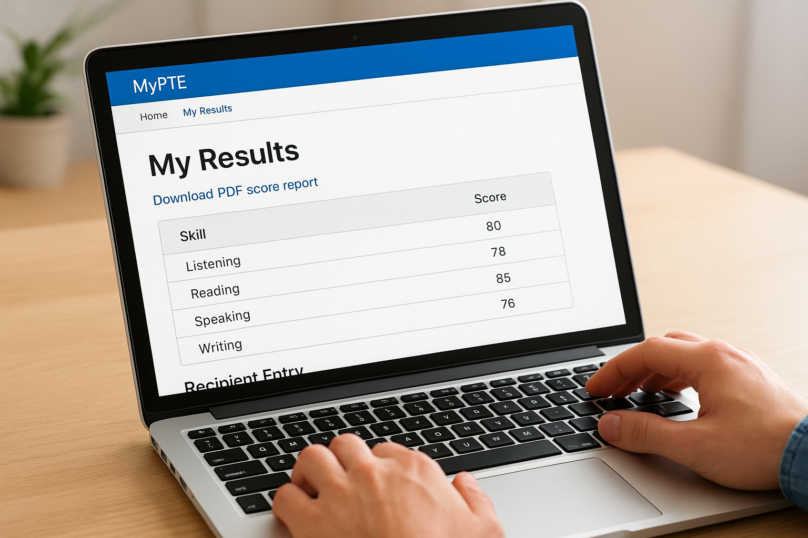
You sat through the PTE Academic exam, gave it your best, and now you need to find your scores. The PTE results login process is straightforward once you know where to go and what to click, but if it’s your first time, the MyPTE portal can feel a bit confusing. Your scores typically become available within 48 hours of completing the test, and you can access them directly through your Pearson account.
At EVA’S Academy Global For Nurses, we prepare nurses for language proficiency exams like PTE as part of their journey toward international nursing careers in New Zealand, Australia, the USA, and the Gulf region. We’ve guided thousands of candidates through this exact moment, waiting for scores, logging in, and figuring out what those numbers actually mean for their migration plans.
This guide walks you through the exact steps to log into your MyPTE account, view your scores, and send them to institutions or licensing boards. Whether you’re checking results for the first time or resending your scorecard, you’ll have everything you need right here to get it done in a few minutes.
What you need before you log in
Before you attempt the PTE results login, gather a few key details so the process goes smoothly. Results become available through Pearson’s MyPTE portal, the same platform you used to register and book your test. If you’re missing your login credentials when you sit down to check your scores, you’ll waste time recovering them instead of reading your results.
Your MyPTE account credentials
Your MyPTE account is the gateway to your score report. You need the email address you used when you first created your Pearson account, plus your account password. If you’ve forgotten either, use the “Forgot Password” link on the MyPTE login page before you proceed so you’re not locked out at a critical moment.
Keep your registration email address accessible at all times, because Pearson sends your score report, verification codes, and all account notifications to that same inbox.
Here’s a quick checklist of what to have ready:
- Email address linked to your Pearson account
- Account password (reset it in advance if you’re unsure)
- Access to your inbox to receive any one-time verification code Pearson may send
Your test booking reference
You may not need your booking reference number just to view your scores, but having it nearby saves time if you need to contact Pearson’s support team or verify which test session your results belong to. Your booking reference appears in the original confirmation email Pearson sent after you registered for the exam. Search your inbox for “PTE Academic booking confirmation” to find it in seconds.
Also confirm that your results are actually ready before logging in. Pearson typically publishes scores within 48 hours of your test date, though some test types can take up to five business days.
Step 1. Use the right PTE results login page
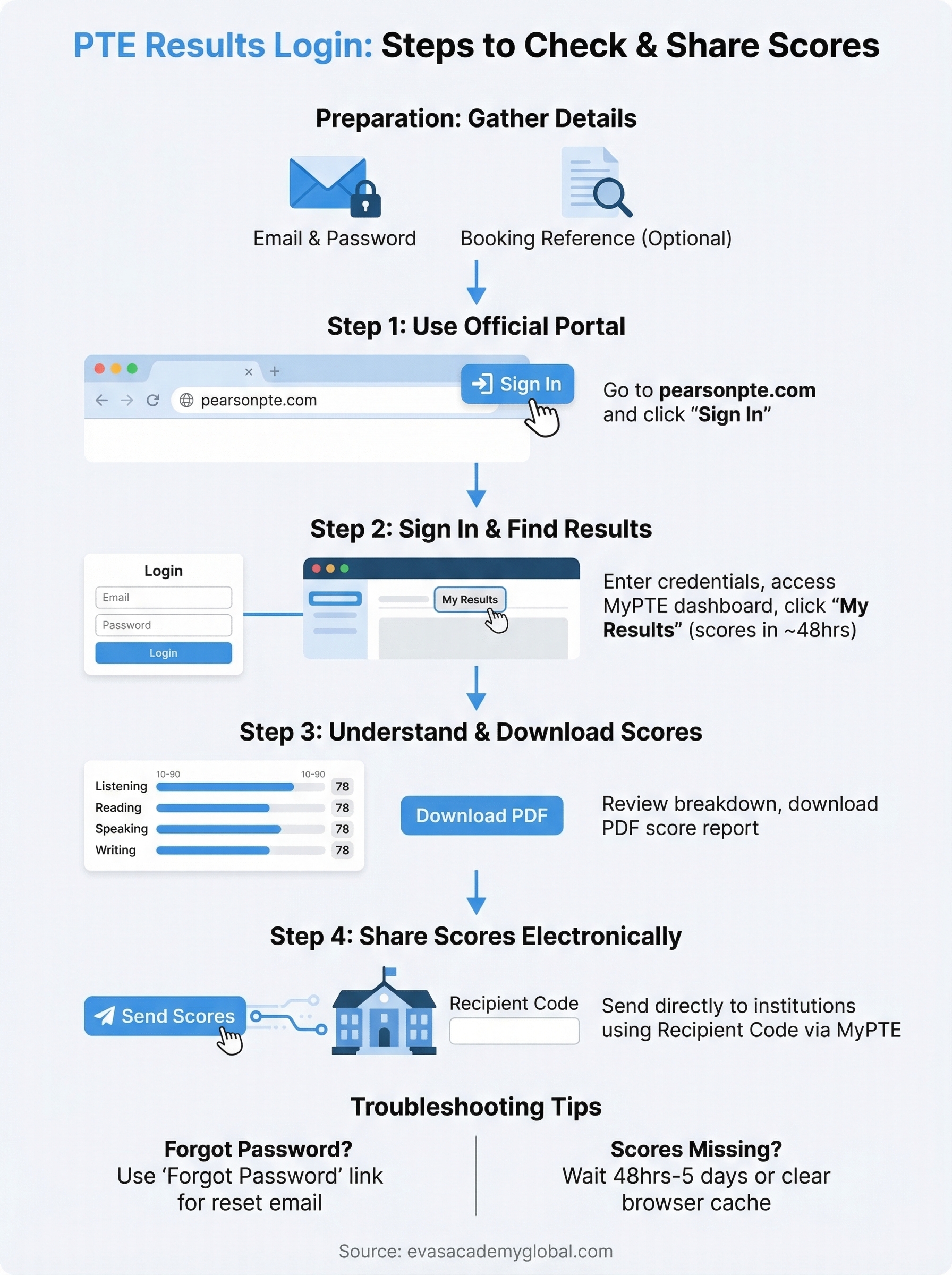
The single most common mistake candidates make is landing on the wrong website. Searching “PTE results login” on Google pulls up a mix of official pages, third-party guides, and expired links. Go directly to the official MyPTE portal at pearsonpte.com to guarantee you’re accessing your actual score report securely.
Always type the URL directly into your browser rather than clicking a link from an unverified source, because phishing pages that target test-takers do exist.
Find the login button on the MyPTE portal
Once you arrive at pearsonpte.com, look for the “Sign In” button in the top-right corner of the homepage. Clicking it takes you to the account login screen where you’ll enter your registered email and password. The portal works on both desktop and mobile browsers, so you can access your result from any device without downloading a separate application.
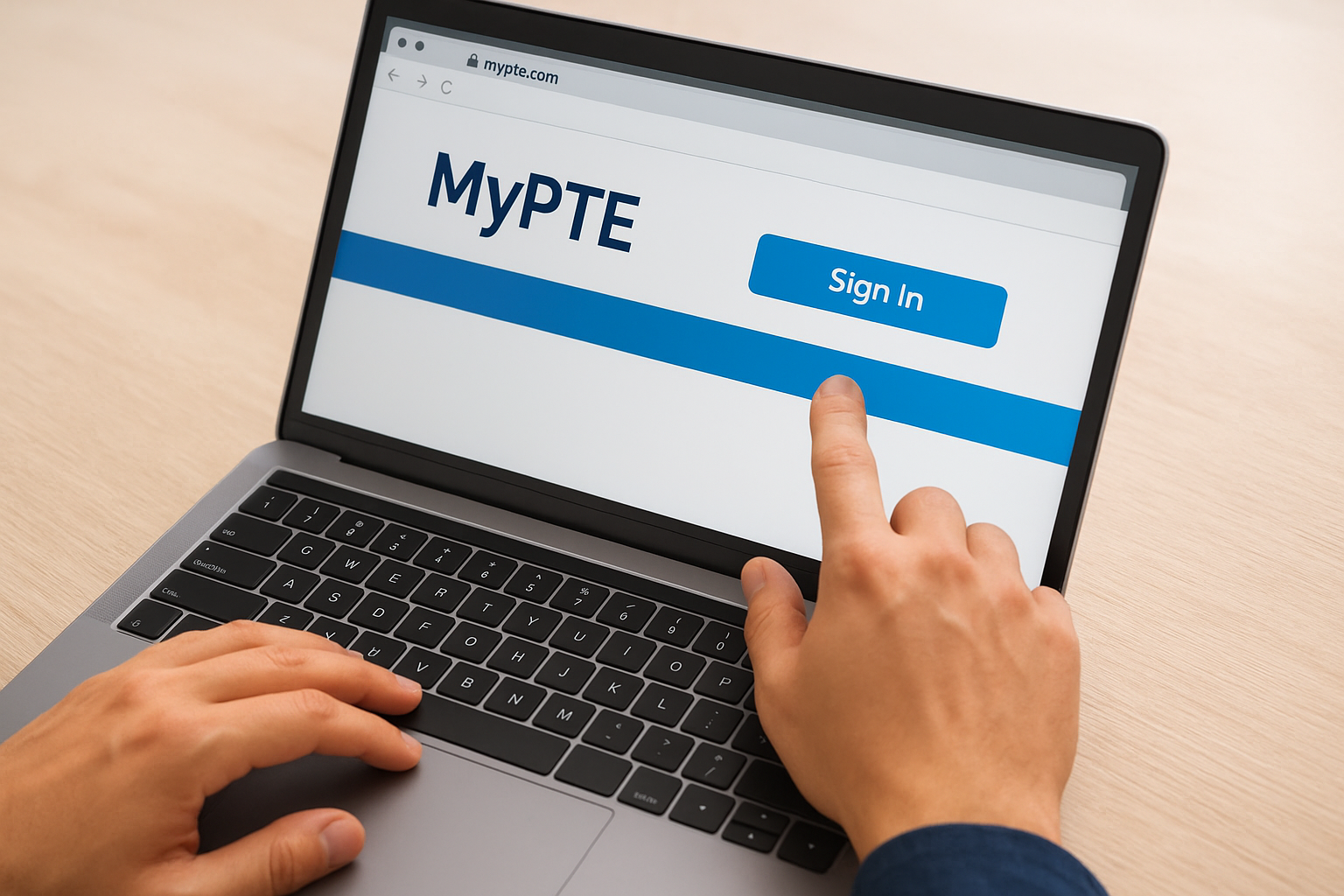
Make sure the URL in your browser shows “pearsonpte.com” and displays a padlock icon confirming a secure HTTPS connection before you enter any login details. If the URL looks different or the padlock is missing, close the tab immediately and type the official address yourself. Pearson will never ask you to log in through a third-party website.
Step 2. Sign in and find your score report
After completing the PTE results login, your MyPTE dashboard loads automatically. Look for the “My Results” tab in the main navigation menu at the top of the screen. Click it and you’ll see a list of all your completed test sessions alongside the date each result was published. If you see no results listed, confirm that 48 hours have passed since your test date before contacting Pearson support.
Read and understand your score breakdown
Your score report displays individual scores for each of the four skills: Listening, Reading, Speaking, and Writing. Each skill shows a number between 10 and 90, along with enabling skills scores that break down your performance in areas like grammar, oral fluency, pronunciation, and vocabulary.
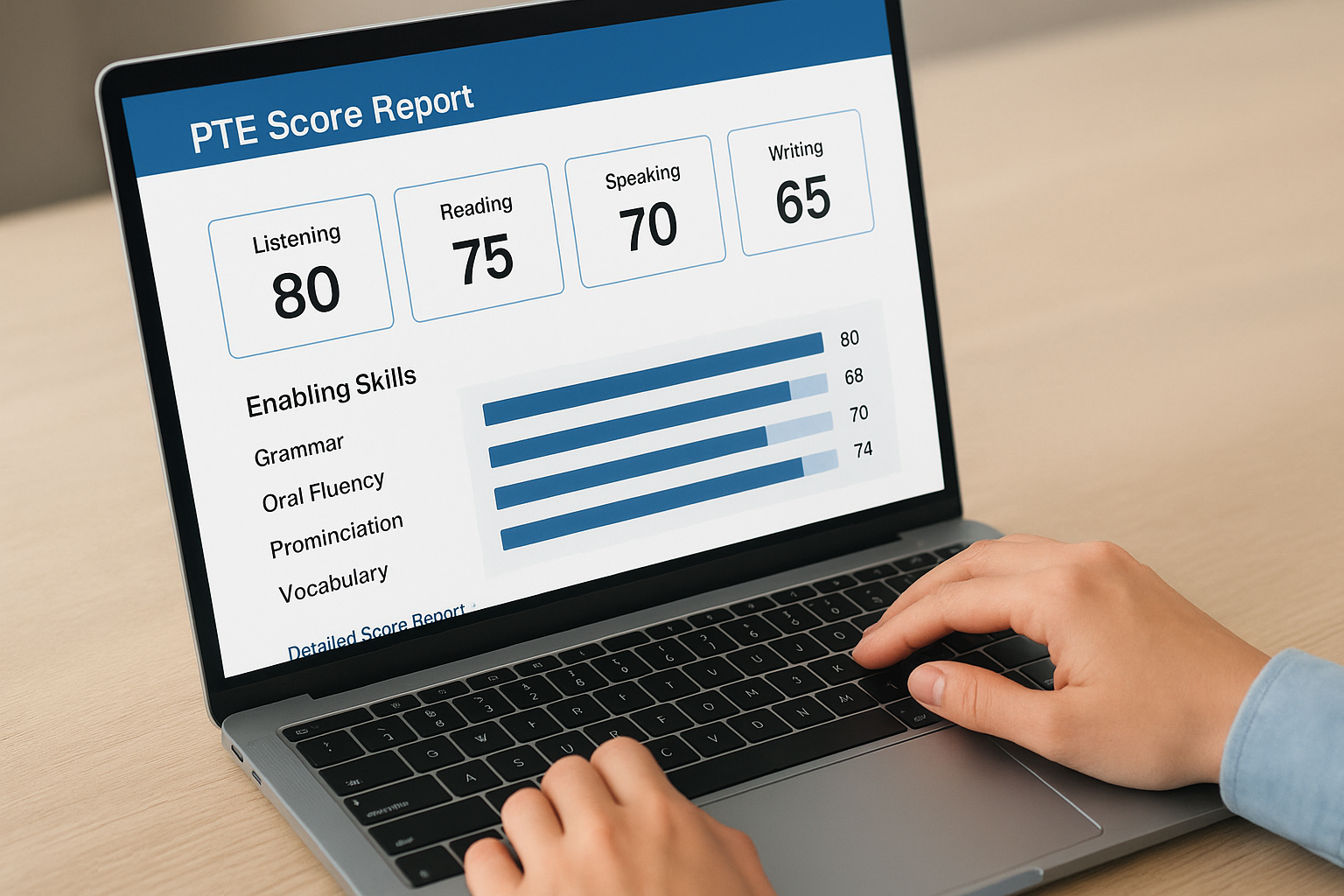
A low score in one skill area pulls your overall PTE score down even if you performed strongly in the other three, so use this breakdown to identify exactly where to focus your preparation.
Below the main scores, you’ll find a “Detailed Score Report” link. Click it to download a PDF version of your complete result, which most nursing licensing boards and institutions require as formal proof of your English proficiency.
Step 3. Share scores with schools and employers
Once you’ve completed your PTE results login and downloaded your PDF score report, you can send your results directly to nursing licensing boards, universities, or employers through the MyPTE portal. Pearson lets you share scores electronically at no extra cost for a set number of institutions, depending on when you registered for your test.
Send scores through the MyPTE portal
Inside the “My Results” section, click “Send Scores” next to the test session you want to share. You’ll need the receiving institution’s name and their Pearson recipient code, which most licensing boards like NMBA (Australia) or the Nursing Council of New Zealand publish on their official websites. Enter the code, confirm the institution details, and submit. Pearson delivers your scores electronically within a few hours.
If the institution doesn’t appear in Pearson’s database, contact them directly to confirm which score format they accept before you send anything.
Use this quick reference when preparing to send your scores:
| Detail needed | Where to find it |
|---|---|
| Recipient code | Institution’s official website |
| Your score report ID | MyPTE “My Results” page |
| Accepted score format | Institution’s admissions or licensing page |
Fix common PTE results login problems
Most PTE results login issues fall into a small number of repeatable categories. Knowing the fix before you encounter the problem saves you from unnecessary delays when your result is waiting and time is tight.
Your password or email isn’t working
If you can’t get past the login screen, start with the “Forgot Password” link on the MyPTE sign-in page. Pearson sends a reset link to your registered email address within a few minutes. If you’ve also lost access to that inbox, contact Pearson’s customer support directly through the Help section on pearsonpte.com with your booking reference and ID proof ready.
Never create a second Pearson account to get around a login issue, because duplicate accounts can lock your actual score report behind an access conflict that takes days to resolve.
Your scores aren’t showing in the dashboard
Your results page will appear blank if 48 hours haven’t passed since your test date, or if Pearson flagged your session for a security review, which can extend the wait to five business days. Check the date of your test, then log out, clear your browser cache, and log back in. If the results tab still shows nothing after five business days, contact Pearson support with your test booking reference to get a status update.
Next steps after you check your result
Once you complete your PTE results login and review your scorecard, your next move depends entirely on whether your scores meet the minimum threshold required by your target licensing board or institution. Most nursing councils in New Zealand, Australia, and the UAE publish score requirements on their official websites, so compare your individual skill scores against those numbers before you do anything else.
If your scores fall short, start targeted preparation immediately rather than waiting. Identify the specific skill that pulled your total down using the detailed breakdown in your MyPTE dashboard, then build a focused study plan around that weakness. At EVA’S Academy Global For Nurses, we help nurses prepare for PTE alongside licensing exams like IQN, OSCE, and DOH as part of a complete migration pathway. Visit our nursing exam and migration preparation programs to find out how we can help you hit your target score and move your international nursing career forward.